Using the Admin Server
Once your Admin Server is up and running, users connect to it from the Griptape Nodes desktop application by activating with a license instead of logging in through Griptape Cloud. This page walks through that flow from the user's perspective.
Before you start
Each user needs:
- The Griptape Nodes desktop application installed.
- A license key. These are issued to your organization; users should request one from their organization admin.
- The Admin Server address. The URL where your Admin Server is reachable on your network, for example
http://admin.internal.example.com:8080. Your Admin Server operator can provide this.
Activate with a license
1. Open the license form
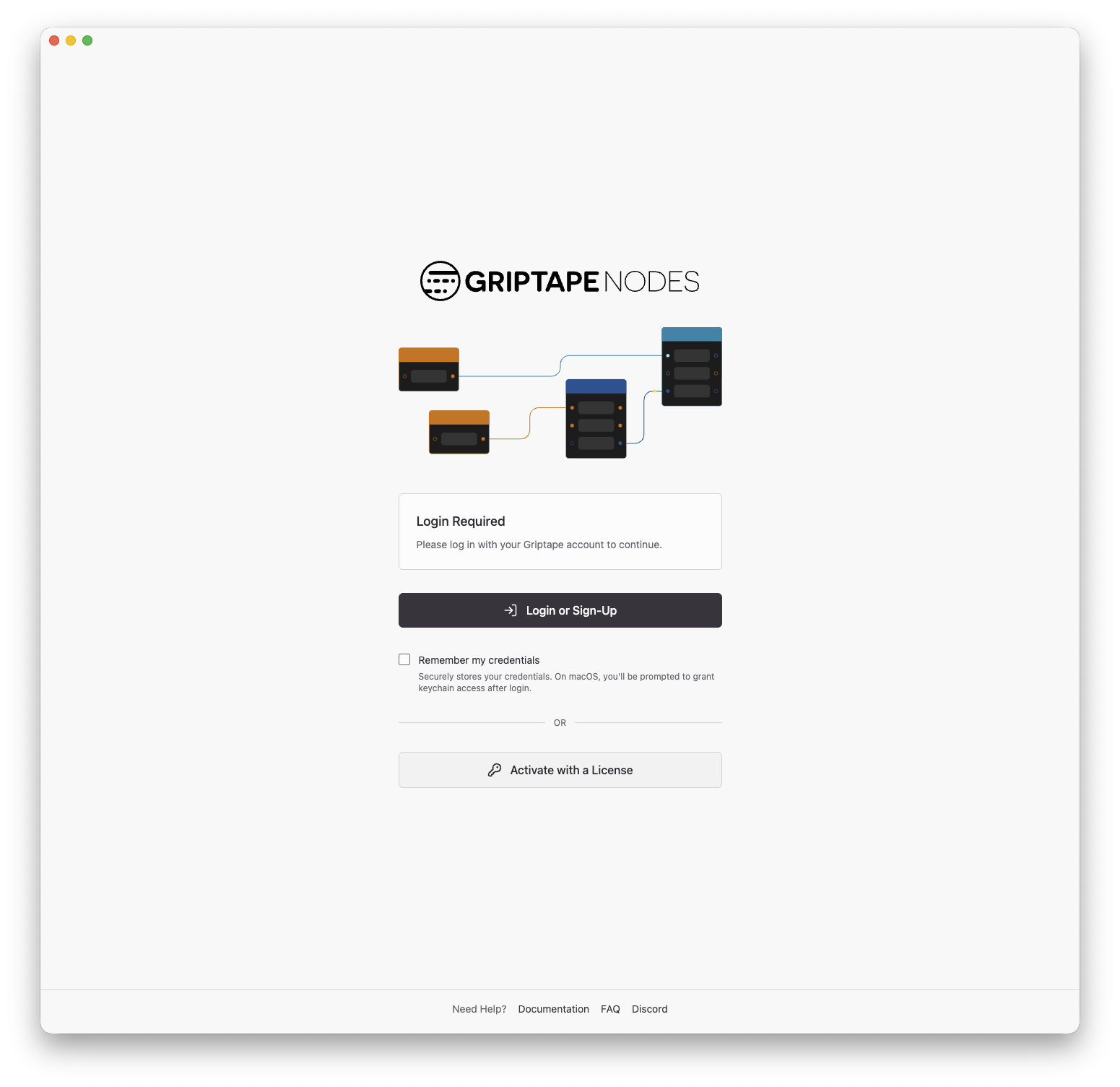
Launch the desktop application. On the login screen, instead of signing in with Griptape Cloud, click Activate with a License.
2. Paste your license key
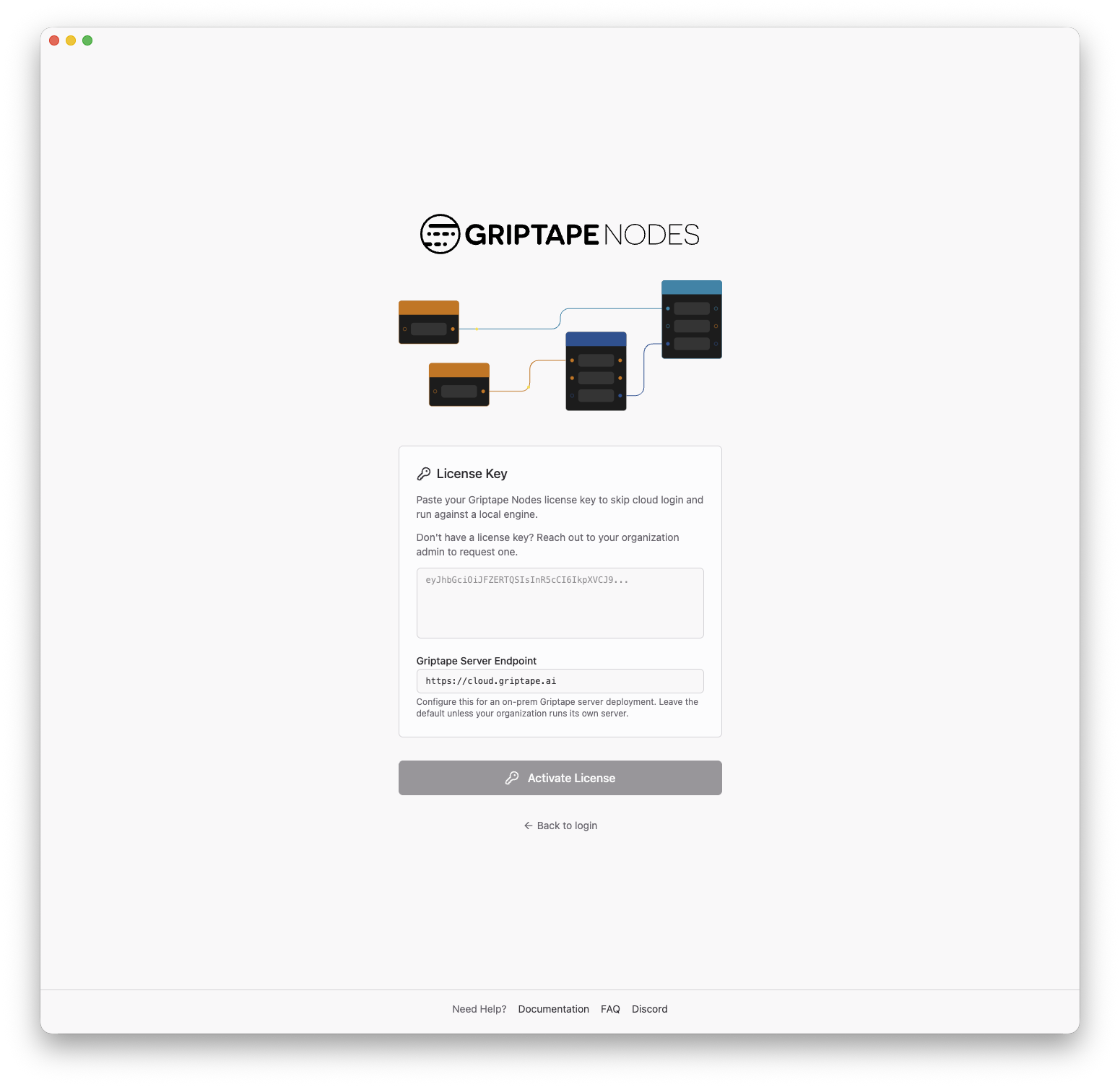
In the License Key field, paste the license key you received from your organization admin.
3. Point at the Admin Server
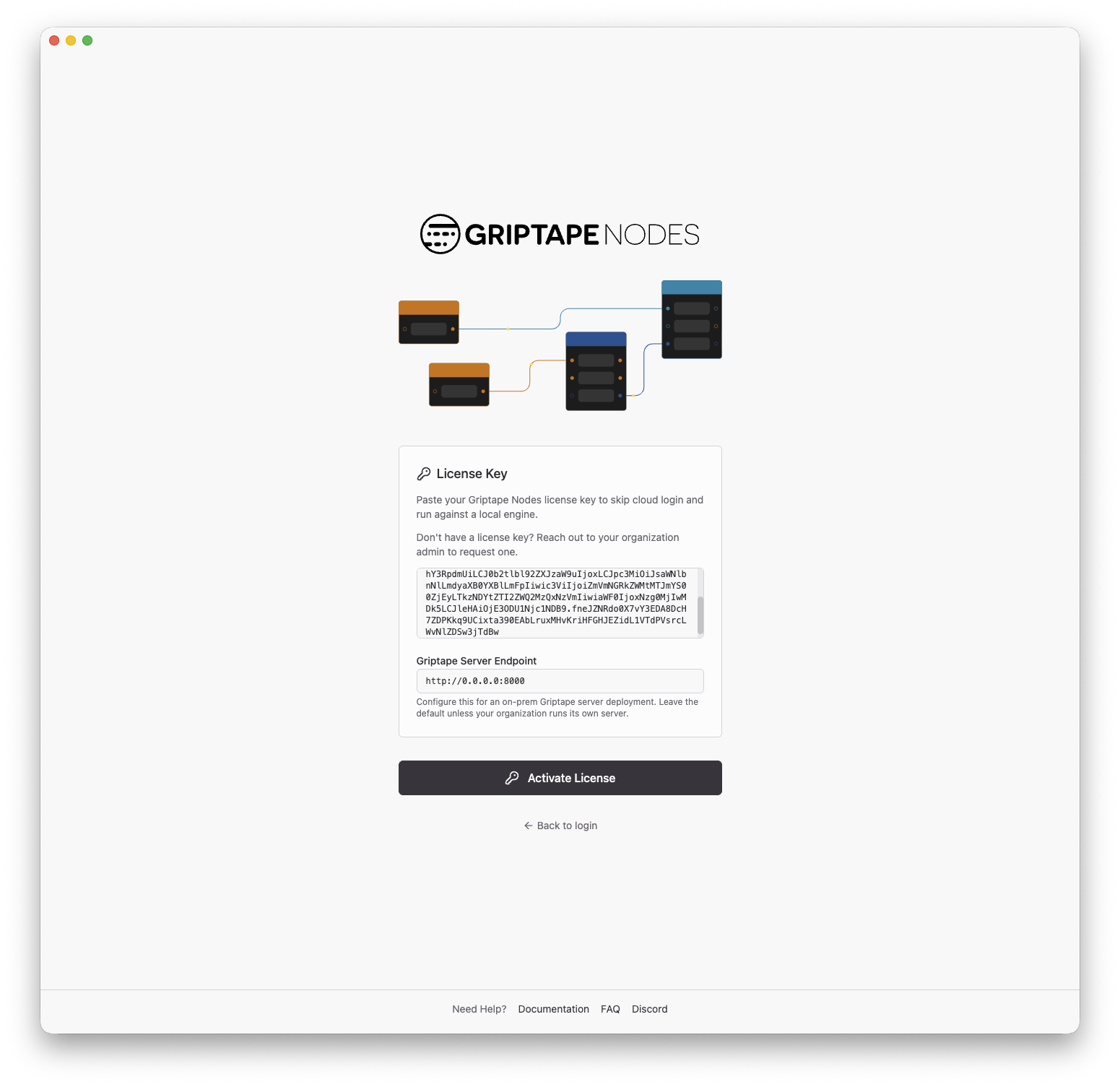
In the Griptape Server Endpoint field, replace the default Griptape Cloud address (https://cloud.griptape.ai) with your Admin Server's address:
http://admin.internal.example.com:8080
This is the key step for an on-premises deployment: with the endpoint set, the application sends all of its Griptape Cloud traffic through the Admin Server instead of reaching the public internet directly.
4. Activate
Click Activate License. The application validates the license and launches the engine as normal, taking you to the editor. From this point on, everything — licensing, sessions, and any Cloud features your organization has permitted — flows through the Admin Server.
Reusing a saved license
Licenses you have activated before are remembered. If you log out (or the license is deactivated), the login screen shows a Saved licenses section after you click Activate with a License. Click Use next to a saved license to re-activate it without pasting the key again. The configured server endpoint is also remembered, so you only need to enter the Admin Server address once.
Troubleshooting
- Activation fails immediately. Check that the license key was pasted completely and has not expired. If the key looks right, confirm the Griptape Server Endpoint is correct and that the machine can reach it — try opening
http://<admin-server-address>/healthin a browser; a healthy server responds with{"status":"ok"}. - Activation worked before but fails now. The license may have expired. Ask your organization admin for a new one.
- Some features return errors after activating. If the Admin Server is configured with forwarding rules, paths that are not permitted are rejected with
403 {"error":"path not permitted"}. Ask your Admin Server operator whether the feature's routes are allowed to egress. - Everything returns errors. If every request fails, the Admin Server itself may be unable to reach Griptape Cloud. This is an operator-side issue — see the Admin Server troubleshooting section.