Libraries
A library is a bundle of nodes you can use in the editor. Some ship with the engine, some you install from a Git URL, some you write yourself. This page is for the artist installing and using libraries — not the developer authoring them. (Library authors: see the Custom Nodes guide and Node Isolation with Workers.)
If you're worried about installing two libraries that conflict, jump to Coexistence guarantees — the short answer is that two libraries' Python dependencies cannot break each other, but two libraries with the same node name can be ambiguous and the engine will tell you about it.
What you start with
The engine supports a Sandbox Library — a scratchpad library
for quickly developing your own custom nodes without authoring a
full library. It isn't there until you set one up: under
Settings → Library → Sandbox Settings, point Sandbox Library
Directory at a folder that exists on disk. Once it does, the
engine picks up .py node files from that directory, and what you
see in the editor's Sandbox category depends on what's actually in
it.
During gtn init, you're offered the Advanced Media Library
(diffusion, image generation, video). You can register it then or
re-run gtn init later to add it. See the
FAQ
for that path.
Other libraries — first-party or community — you install yourself through the editor.
Installing a library (in the editor)
The editor's Libraries panel is the primary install surface. Open it from the header's Manage menu → Library Management.
Click Add Library (top right) to open the Add Library
modal. Paste a Git URL (for example a GitHub repository hosting a
community library) and click Install. The editor clones the
repo, reads the library's griptape_nodes_library.json manifest,
installs its dependencies, and registers it. Advanced Options
in the modal lets you pick a specific branch, tag, or commit
instead of the repository default.
Not sure what to install? The Browse Community Libraries button at the bottom of the modal opens a curated list of libraries you can install.
After a successful install, the new library appears in the panel's library list. Each entry shows:
- The library's name and version.
- The number of nodes it provides.
- An Open action that opens the library's directory in your file manager.
- An Advanced disclosure that shows the library's Git remote, ref (branch or tag), and current commit. If you ever need to report a bug, the commit shown there is the precise version to cite.
You can filter the list by All, Updates, or Errors using the chips above it. Errors is your first stop when something is wrong with one of your libraries — it surfaces install failures, dependency-install failures, and load-time failures together.
Updating libraries
In the same Libraries panel, the icon buttons next to the filter chips let you:
- Check for updates — scan all installed libraries for new versions. Anything with an update available shows up under the Updates filter.
- Refresh — re-read the library list (helpful if you just installed something and want to confirm it took).
For ambient update awareness, Configuration Editor → Libraries controls how aggressively the engine checks for library updates on its own.
Update Notifications options:
- Enable sidebar notifications — show a badge on the Libraries tab and per-library buttons when an update is available.
- Notification color / animation — visual style for the badge.
- Check on startup — scan for updates each time the engine loads.
- Check periodically — repeating schedule (Never, Hourly, etc.).
- Check Now — trigger an immediate scan.
You don't have to configure any of this; the defaults are fine for most artists.
Toggling and removing libraries
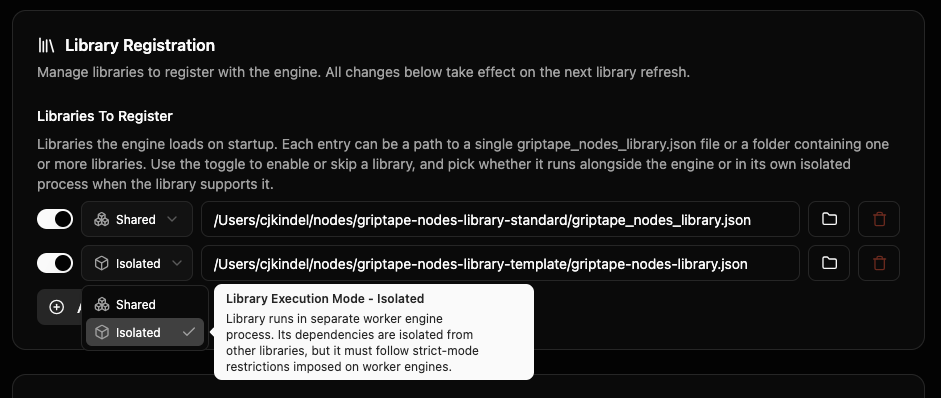
The same Configuration Editor → Libraries view also shows Library Registration → Libraries To Register. Each entry in that list is a library the engine loads at startup. Three controls per entry:
- The toggle (left) — flip off to keep the library on disk but stop loading it on engine start.
- The Shared / Isolated dropdown (middle) — choose where the library runs (see below).
- The trash icon (right) — remove the entry entirely. The clone on disk stays put; delete its directory manually if you want the disk space back.
Shared vs. Isolated
The dropdown picks the process a library runs in:
- Shared — the library runs inside the main engine process, alongside the other shared libraries.
- Isolated — the library runs in its own separate process, so its Python dependencies are walled off from every other library and a crash in it can't take the rest of the engine down.
The dropdown shows the mode the engine will actually use: the library author's suggested mode, unless you override it here. Pick Isolated for a heavy library you want walled off, or Shared to keep it in-process. Some libraries are marked by their author as incompatible with isolation; for those the dropdown is locked to Shared.
The dropdown only appears when your engine version supports it (0.86.0 and later). Changes take effect on the next library refresh.
The Add Library button below lets you point the engine at a
griptape_nodes_library.json you already have on disk (a library
you cloned manually, or a library you're developing locally).
Coexistence guarantees
The point of installing two libraries side-by-side is that they can't break each other. Three layers control how well that holds:
Python dependency isolation
Every registered library gets its own virtual environment — an
isolated set of Python packages that doesn't share state with the
engine's own packages or with any other library's. Library A can
pin torch==2.4.1; library B can pin torch==2.0.0. Both are
installed into separate .venv directories, and each library uses
its own when its nodes run.
This holds whether a library runs Shared or Isolated (see
Process isolation): the
.venv lives on disk next to the library's manifest either way.
The difference is only which process loads those packages — the
main engine process for Shared libraries, the library's own process
for Isolated ones. From the artist's perspective the dependency
isolation is the same.
You can install incompatibly-pinned libraries together without pip resolution conflicts. This is the most important guarantee on this page.
Process isolation: the Isolated mode
Running a library Isolated (in its own dedicated process, instead of inside the engine's main process) gives you:
- Fault tolerance. If the library crashes, only that library goes down — the rest of the engine keeps running.
- Resource isolation. Anything the library loads into memory (model weights, GPU memory, background threads) lives in the library's own process and can't degrade other libraries.
Heavy ML libraries (diffusion, transformers, custom CUDA stacks) benefit most; lightweight libraries (simple HTTP / data nodes) usually run fine Shared. You control this per library with the Shared / Isolated dropdown described in Toggling and removing libraries. The library author sets the suggested starting mode and whether the library is allowed to run Isolated at all; your dropdown choice overrides the author's suggestion for any library that permits it.
Library authors declare isolation compatibility and a suggested
mode in their griptape_nodes_library.json (the
worker_mode_compatibility and suggested_worker_mode
declarations) — see Node Isolation with Workers
for the schema. As an artist, the Shared / Isolated dropdown is the
only surface you need.
Node-name collisions: not solved
If two libraries register a node class with the same name (e.g.
both ship a MyImageNode), the engine accepts both. The engine
does not warn you at install time. When you create that node:
- If your workflow names the library explicitly, it works.
- If it doesn't, the engine raises an error listing both libraries so you can disambiguate.
This is the one coexistence concern the engine doesn't solve for you. If you suspect a collision, the safest fix is to remove the library you don't want from the Libraries To Register list.
When something goes wrong
"I installed the library but I don't see its nodes"
Open the Libraries panel and switch the filter to Errors. That's the consolidated view of every library that failed to install, failed to install dependencies, or failed to load. Click into the offending library for the specific error message.
Common causes:
- The library pins a wheel (a pre-built Python package) that
doesn't exist for your Python version or platform — for example a
torchwheel for an unsupported CUDA version. - Your network blocked the install (corporate proxy, or no internet during the install step).
- Disk full (the engine reports this explicitly).
Fix the underlying issue, then re-trigger the install (re-paste the
URL in the Add Library modal, or use the CLI alternative below
with --overwrite).
"A node looks broken or red in the editor"
The engine couldn't construct that node — usually because its library failed to load. The editor swaps in a placeholder so your workflow file isn't corrupted. Check the Errors filter in the Libraries panel for the underlying load error; once you fix it, reopening the workflow uses the real node again.
Looking for the raw error text
The terminal window where the engine is running (the same window
you launched the engine from) carries the verbose error log,
including stack traces. Errors from libraries running Isolated
appear there with a Worker-<id> prefix.
CLI alternatives
If you'd rather use the command line — for automation, headless
engines, or just preference — the editor's library actions have
gtn equivalents:
| Editor action | CLI equivalent |
|---|---|
| Add Library → Install | gtn libraries download <git_url> |
| Check for updates → install pending | gtn libraries sync |
| Sync over local edits | gtn libraries sync --overwrite |
| Re-register Advanced Media Library | gtn init, answer y |
See Command Line Interface for the full reference.
Where libraries are stored on disk
- Config:
~/.config/griptape_nodes/griptape_nodes_config.json(or the platform equivalent — see Engine Configuration). Theapp_events.on_app_initialization_complete.libraries_to_registerlist inside it is what the editor's Libraries To Register list edits. - Clones / venvs: in the directory the editor cloned the
library into; the library's
.venvlives next to itsgriptape_nodes_library.json. - Sandbox library: the sandbox directory is configured separately in your settings; defaults vary by platform.
For library authors: see Custom Nodes and Node Isolation with Workers.