Blender MCP Server
The Blender MCP Server is the official MCP integration for Blender, developed and maintained by the Blender Lab team. It allows AI agents to directly interact with and control Blender for prompt-assisted 3D modeling, scene inspection, and manipulation.
Prerequisites
Before using the Blender MCP server, you must:
- Have Blender 5.1 or newer installed
- Install the
uvpackage manager (installation instructions) - Clone the Blender MCP repository
- Install the Blender MCP extension (see below)
Installing the Blender MCP Extension
The Blender MCP server is distributed as a Blender Extension through the official Blender Extensions platform.
-
Visit blender.org/lab/mcp-server and scroll down to the Add-on section
-
Choose one of the two installation methods:
Option A — Drag and Drop
Drag the Drag and Drop into Blender button onto an open Blender window.
Drag and drop twice
You must drag and drop twice: the first drop adds the Blender Lab repository, and the second drop installs the add-on itself.
Option B — Install from Disk
Click download on the page, then in Blender go to Edit → Preferences → Get Extensions → dropdown → Install from Disk... and select the downloaded file.
-
In Blender, go to Edit → Preferences → Get Extensions
-
Search for
mcp— you should see the MCP extension listed as Available -
Click Install
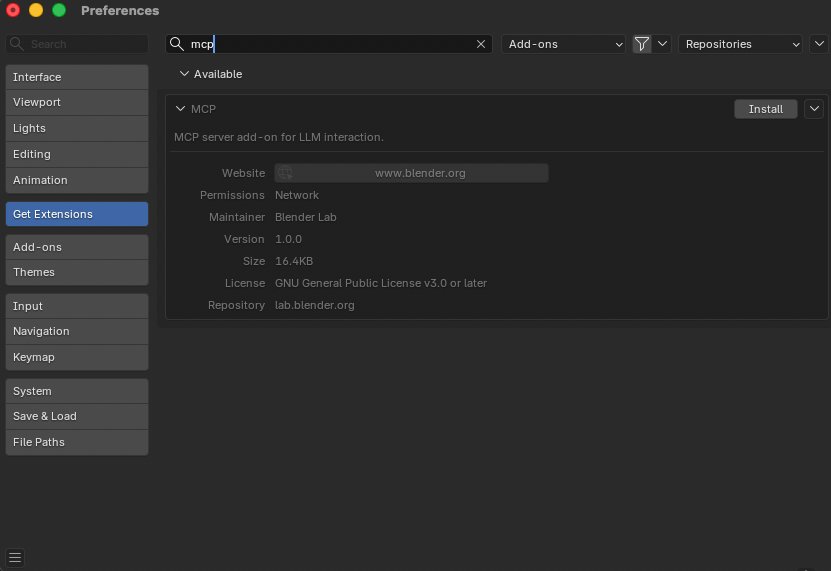
Starting the MCP Server in Blender
Once the extension is installed, you need to start the MCP server inside Blender before connecting from Griptape Nodes:
- In Blender, go to Edit → Preferences → Add-ons
- Search for
mcpand expand the MCP extension preferences - Configure the Host and Port if needed (defaults:
localhost/9876) - Optionally enable Auto Start so the server starts automatically with Blender
- Click Start MCP Server
The panel will show Server is running when the connection is ready.
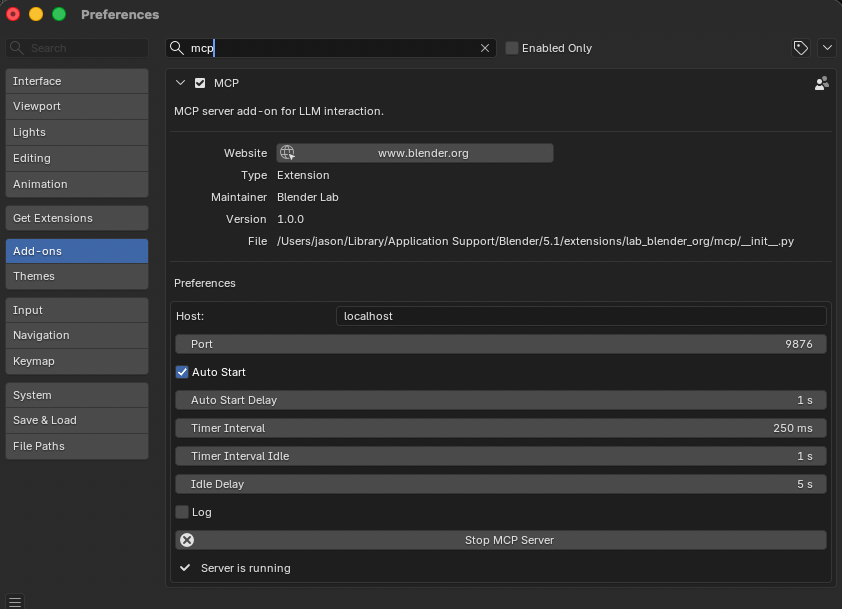
Cloning the MCP Server Code
The Griptape Nodes MCP connection requires a local clone of the Blender MCP repository. Clone it to an easily discoverable location — for example, on a Mac you might use $HOME/Documents/GitHub:
cd $HOME/Documents/GitHub
git clone https://projects.blender.org/lab/blender_mcp.git
You will reference the path to the mcp/ subdirectory inside your clone in the Griptape Nodes configuration below.
Installation in Griptape Nodes
-
Open Griptape Nodes and go to Settings → MCP Servers
-
Click + New MCP Server
-
Configure the server:
- Server Name/ID:
blender - Connection Type:
Local Process (stdio) - Configuration JSON:
{ "transport": "stdio", "command": "uv", "args": [ "--directory", "/path/to/blender_mcp/mcp", "run", "blender-mcp" ], "env": {}, "cwd": null, "encoding": "utf-8", "encoding_error_handler": "strict" } - Server Name/ID:
-
Replace
/path/to/blender_mcp/mcpwith the actual path to themcp/subdirectory inside your local clone -
Click Create Server
Example path
If you cloned the repository to $HOME/Documents/GitHub/blender_mcp, the --directory value would be:
/Users/yourname/Documents/GitHub/blender_mcp/mcp
Example Use Cases
- "With the current open Blender file, suggest descriptive names for all data-blocks, and apply if approved"
- "What is the object with the highest poly-count in this file? Ignore objects which are not linked to any scene"
- "Create a sphere and place it above the cube"
- "Make the lighting like a studio"
- "Point the camera at the scene and make it isometric"
- "Get information about the current scene and export it as JSON"
Troubleshooting
Common Issues
- Connection refused: Ensure the MCP server is running in Blender (check that the extension preferences show Server is running)
- First command fails: The first command after connecting sometimes doesn't go through. Try running the command again
- Wrong path: Verify the
--directoryargument points to themcp/subdirectory of your clone, not the repository root - Timeout errors: Try simplifying your requests or breaking them into smaller steps
- Code execution warnings: If the server exposes code execution tools, always save your Blender work before using them
Debug Tips
- Confirm the extension is installed and enabled under Edit → Preferences → Add-ons
- Check the Host and Port match on both sides (Blender extension and Griptape Nodes config)
- Test with a simple query first (e.g., "what objects are in the scene?")
- Restart both Blender and the MCP server if issues persist
Resources
- Blender MCP Server - Official page and extension download
- Blender MCP Repository - Source code and issue tracker
- Blender Python API - Reference for Blender scripting
- uv Installation - Package manager required to run the MCP server
Security Considerations
Code Execution
Some MCP tools may execute code directly in Blender. This can be powerful but potentially dangerous:
- Always save your Blender work before using code execution tools
- Review generated code when possible
- Use with caution in production environments